LinkShare rotating banner
Showing posts with label open-source. Show all posts

Monday, October 8, 2012

Linux: Building X.org Kdrive Server Xfbdev on Debian Wheezy

Kdrive is a minimal X11 server that runs as a single executable with little dependencies. I use Kdrive for my Web-only/Rescue Linux systems. Before compiling Kdrive, I installed the following packages on my box running Debian Sid — which will be eventually rolled into Wheezy release:


  • bison

  • g++-4.7

  • libexpat1-dev

  • libpciaccess-dev

  • libpixman-1-dev

  • libssl-dev

  • libudev-dev
  • libxdamage-dev

  • libxfont-dev

  • libxi-dev

  • libxkbfile-dev

  • libxmu-dev

  • libxxf86vm-dev

  • make

  • pkg-config

  • x11proto-bigreqs-dev

  • x11proto-composite-dev

  • x11proto-randr-dev

  • x11proto-render-dev

  • x11proto-resource-dev

  • x11proto-scrnsaver-dev

  • x11proto-video-dev

  • x11proto-xcmisc-dev

  • x11proto-xf86dga-dev

  • x11proto-xinerama-dev

  • xkb-data


Installing X Protocol Headers


The current RandR protocol headers from Debian didn't meet the required version, so I had to download the latest one from freedesktop.org. I installed randrproto like this.


tar xjvf randrproto-1.4.0.tar.bz2
cd randrproto-1.4.0
./configure --prefix=/usr
make install


Compiling Xfbdev


I got the latest X.org release from freedesktop.org. The following commands will build Xfbdev:


tar xjf xorg-server_1.13.0.tar.bz2

cd xorg-server-1.13.0/

./configure --prefix=/usr --disable-xorg --enable-kdrive --enable-kdrive-evdev --enable-config-udev --disable-aiglx --disable-glx --disable-dri --disable-dri2 --disable-drm --disable-record --with-xkb-path=/usr/share/X11/xkb --with-xkb-output=/var/lib/xkb --with-xkb-bin-directory=/usr/bin --with-default-xkb-rules=xorg --with-default-xkb-model=pc105 --with-default-xkb-layout=us

make

make install


Installed Files


The following files are installed after successfully building a Kdrive server.


/usr/bin/Xfbdev

/usr/bin/Xnest

/usr/bin/Xvfb

/usr/lib/xorg/protocol.txt

/usr/share/man/man1/Xnest.1

/usr/share/man/man1/Xserver.1

/usr/share/man/man1/Xvfb.1

/var/lib/xkb/README.compiled


To Use Xfbdev


An executable file Xfbdev will be created in /usr/bin. To be able to use the Xfbdev server, framebuffer video must be enabled either in the kernel or as a module. If CONFIG_FB_VESA option was enabled in the kernel, you can use the syslinux bootloader in the following way to boot Linux into a framebuffer video mode:


LABEL minimal
KERNEL vmlinuz-2.6.31.5
INITRD initramfs.lzma
APPEND vga=0x314 video=vesafb:mtrr


Once the framebuffer video has been activated, Xfbdev can be started in the following way:


Xfbdev :0 vt7 dpms -ac -br +bs -dpi 96 -mouse evdev,5,device=/dev/input/event2 -2button -keybd evdev,,device=/dev/input/event3 -fp /usr/local/share/fonts,/usr/share/fonts/X11/Type1,/usr/share/fonts/truetype/ttf-dejavu -nolisten TCP


Download my X.org build 1.13.0



Download

Here you can obtain my compiled binaries Xfbdev, Xnest and Xvfb:


Also Read:


Wednesday, September 26, 2012

To Build Transmission-Daemon for Windows

transmission-bittorrent icon

Transmission is a free bittorrent application available on Linux. It is a pretty neat tool compared to other bittorrent software. It is possible to compile and use Transmission on Windows, thanks to Cygwin. First, install Cygwin using the Cygwin installer(setup.exe). I set the Root directory to C:\Cygwin and chose to install the following packages in addition to base packages.


  • bison
  • gettext-devel
  • libtool
  • make
  • binutils
  • gcc4-g++
  • patch
  • pkg-config


Compile zlib.


./configure --prefix=/usr --static
make
cp -iv zconf.h zlib.h /usr/include
cp -iv libz.a /usr/lib


Build OpenSSL.


./Configure -DHAVE_STRUCT_TIMESPEC -lz -lpthread threads zlib --prefix=/usr cygwin
make
make install


Build CURL.


./configure --prefix=/usr --disable-shared --with-ssl --with-ca-bundle=ca-bundle.crt
make
make install


Compile libevent.


./configure --prefix=/usr --disable-shared
make
make install


Lastly, build transmission.


./configure --prefix=/usr --disable-shared --enable-static --disable-nls --without-gtk CPPFLAGS=-DHAVE_STRUCT_TIMESPEC
make
make install


If you get snprintf error with libutp, insert the following line into utp.cpp:


extern int snprintf(char *, size_t, const char *, ...);

Saturday, September 22, 2012

To Compile UnionFS-fuse 0.26 on Debian Linux

I am trying to switch to unionfs-fuse for my live CD, but so far I haven't much success yet. Debian's unionfs-fuse package in Sid is outdated (version 0.24), so I compiled version 0.26. I had to install libfuse-dev in order to be able to build UnionFS-fuse. I probably needed cmake too, but I didn't choose to install cmake.


  • cmake
  • gcc
  • libfuse-dev
  • make


I edited Makefile to change PREFIX.


PREFIX=/usr
BINDIR=/bin
SBINDIR=/sbin


I just typed make to begin compilation.


make
make install


The following files are installed.


/usr/bin/unionfs
/usr/sbin/mount.unionfs
/usr/share/man/man8/unionfs-fuse.8


To make it compatible with Debian and derivatives, I renamed unionfs.


mv /usr/bin/unionfs /usr/bin/unionfs-fuse

Thursday, September 13, 2012

Compile xz for Windows using MinGW

xz is the new popular compression format. To build xz tools and libraries, I issued the following commands.


./configure --prefix=/mingw --disable-shared --disable-nls --disable-lzma-links --disable-scripts
make
make install


I got the following files:


lzmadec.exe
lzmainfo.exe
unxz.exe
xz.exe
xzcat.exe
xzdec.exe


Note that xz can be used to create and decompress lzma files also.

Wednesday, September 5, 2012

Compiling CMake with MinGW

CMake is a portable build system. CMake can be used to replace the traditional GNU build process, as in:


./configure

make

make install


Compiling CMake is fairly simple. After you install MinGW (as shown in this post), download and unpack the CMake source tarball. Run the following commands in order.


tar xzvf cmake-2.8.9.tar.gz
cd cmake-2.8.9
./bootstrap --prefix=/mingw
make
make install

Tuesday, December 20, 2011

To build wget.exe with MinGW

wget is a useful command-line downloader. To build wget for the Windows platform, first install MinGW. Then, compile zlib, openssl and wget in that order. To compile zlib:


make -f win32/Makefile.gcc
cp -iv zlib1.dll /mingw/bin
cp -iv zconf.h zlib.h /mingw/include
cp -iv libz.a /mingw/lib
cp -iv libz.dll.a /mingw/lib


To compile openssl:


./Configure -DHAVE_STRUCT_TIMESPEC -DPTW32_STATIC_LIB -L/mingw/lib -lz -lpthreadGC2 -lws2_32 --prefix=/mingw threads zlib mingw
make
make test
make install


Now, build wget


./configure --prefix=/mingw --enable-threads=win32 --disable-nls --with-ssl=openssl
make
make install

Saturday, July 10, 2010

List of Useful Software for Windows


I just finished setting up my laptop. It's got Windows 7 Home Premium installed. The following is a list of software I installed onto my laptop:


Related Posts


Saturday, April 24, 2010

MinGW: To Compile Vorbis Tools

Vorbis tools include oggenc and vorbiscomment that can be used to produce Ogg-Vorbis music files. Ogg Vorbis provides people with free, open-source audio format and encoding algorithm. Because the MP3 algorithm is patented and creating MP3 exposes people to legal risks, use of the Ogg Vorbis format is a reasonable choice for legally conscious people. Besides its openness and patent-free characteristics, Ogg Vorbis offers good compression and sound quality, comparable to MP3 and AAC. Therefore, everyone is recommended to create, use and spread Ogg Vorbis music files, instead of MP3 and AAC.


To learn how to prepare a MinGW environment, read this post. Then, download the source for libogg, libvorbis and vorbis-tools from xiph.org.


To build Vorbis tools, libogg and libvorbis should be compiled first. Start the MinGW rxvt console from the Start menu. Unpack the libogg source and compile it as follows:


tar xzvf libogg-1.2.0.tar.gz
cd libogg-1.2.0/
./configure --prefix=/mingw
make
make install


libvorbis can be compiled likewise:


tar xzvf libvorbis-1.3.1.tar.gz
cd libvorbis-1.3.1/
./configure --prefix=/mingw
make
make install


Then, build vorbis-tools as follows:


tar xzvf vorbis-tools-1.4.0.tar.gz
cd vorbis-tools-1.4.0/
./configure --prefix=/mingw --disable-nls --enable-threads=win32
make
make install


When done, the following files are created in /mingw/bin:


libogg-0.dll
libvorbis-0.dll
libvorbisenc-2.dll
libvorbisfile-3.dll
oggdec.exe
oggenc.exe
ogginfo.exe
vorbiscomment.exe


Copy these files whereever you want. To create an Ogg Vorbis file from a .WAV file, use a command like this:


oggenc -q5 audio.wav


Related Posts


Wednesday, May 20, 2009

OpenOffice.org on Portable USB drive

My favorite Office suite is OpenOffice.org which is free and fully functional alternative to Microsoft Office 2007. If you haven't tried it yet, I highly recommend OpenOffice.org to you.


OpenOffice.org Portable 3.0.0 zh-CN by Sunny.x on Flickr

My 2GB MEMOREX USB by b3kool on FlickrHowever, OpenOffice.org is not widely available on computers in offices, cafe, schools and airports. In case you want to use OpenOffice.org on public computers without OpenOffice.org installed, you can install OpenOffice.org onto your USB flash drive beforehand, carry it with you wherever you go, and run OpenOffice.org from the USB thumbdrive. OpenOffice.org can be installed on USB thumbdrives of minimum 512 MB space. There are 2 portable releases of OpenOffice.org:


Math Improper Activity

Friday, May 1, 2009

쓸만한 윈도 프로그램 리스트


제가 추천하는 윈도용 프로그램 리스트입니다. 빠진 게 있으면 댓글 남겨 주세요:


Related Posts


Monday, January 26, 2009

Installing MinGW on Windows

MinGW is a free software development system for Windows. Not only is MinGW useful for porting Linux software to Windows, but you can also use MinGW to write native Windows programs. The following is an excerpt from the MinGW web site:


MinGW: A collection of freely available and freely distributable Windows specific header files and import libraries, augmenting the GNU Compiler Collection (GCC) and its associated tools (GNU binutils). MinGW provides a complete Open Source programming tool set which is suitable for the development of native Windows programs that do not depend on any 3rd-party C runtime DLLs.

Now, let's install MinGW. Note that MinGW doesn't run smoothly on Windows Vista because of weird filesystem restrictions. The workaround is:


  • to install MinGW in your home folder (C:\Users\username) or a public folder (somewhere in C:\Users\Public, for example, C:\Users\Public\Desktop)
  • to run MSYS (rxvt) as administrator (Right-click and select Run as administrator)
  • to install MinGW on FAT filesystem,
  • to work in the safe mode, or
  • to use MinGW Portable which is said to be working well.


To Set up the Latest MinGW


To have a functional MinGW installation, just download and run the latest MinGW installer.


To Set up GCC toolchain 3.4.5


To install the outdated GCC toolchain 3.4.5, download the following installers and run them in the order:


After Installation


After successfully installing MSYS, check the file /etc/fstab inside the MSYS folder. Mine looks like:


C:/MinGW /mingw
C:/MinGW /usr/local


You can try MSYS by double-clicking the MSYS icon on the desktop. This will bring up a console window where you can type in some UNIX commands. For example, the following command will display the version of installed GCC compiler:


$ gcc --version
gcc.exe (GCC) 3.4.5 (mingw-vista special r3)
Copyright (C) 2004 Free Software Foundation, Inc.
This is free software; see the source for copying conditions. There is NO
warranty; not even for MERCHANTABILITY or FITNESS FOR A PARTICULAR PURPOSE.


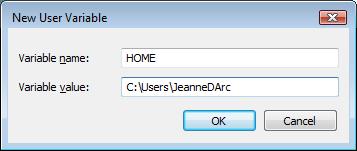
The environment variable HOME can be used to set the user's working directory. If your username has a space or foreign character, it may confuse MinGW and hinder the compile process. In Windows Vista and Windows 7, access restriction is imposed outside C:\Users. In such cases, set $HOME to some other location. For example, set the HOME variable like this:


Don't forget to create ~/.profile. This file can be used to set environment variables, such as CC, CFLAGS, CXXFLAGS, CPPFLAGS and LDFLAGS. These environment variables are used to customize the compiler settings. The following is my .profile contents:


CC=/mingw/bin/gcc.exe
CFLAGS='-march=pentium2 -mtune=i586 -mthreads -mms-bitfields -O2'
CXXFLAGS='-march=pentium2 -mtune=i586 -mthreads -mms-bitfields -O2'
LDFLAGS='-Wl,--enable-auto-image-base,--enable-auto-import,--enable-runtime-pseudo-reloc'
PKG_CONFIG_PATH=/mingw/lib/pkgconfig
TERM=cygwin
export CC CFLAGS CXXFLAGS LDFLAGS PKG_CONFIG_PATH TERM


Testing GCC with simple codes


Let's compile a very simple C program. Using a text editor, such as Notepad, create a text file called test.c:


#include <stdio.h>

int main(void)
{
printf("Greetings, ladies and gentlemen.\n");
return 0;
}


The following command will produce an executable code.


gcc -o test.exe test.c


Now, let's try a very simple C++ code:


#include <iostream>
using namespace std;

int main()
{
cout << "Hello, boys and girls.\n";
return 0;
}


To build it, type:


g++ -o test.exe test.cpp


Additonal Tools to Install


You can optionally install other tools from the MinGW download site, such as mingw-utils and bison. mingw-utils provides some useful tools, including dos2unix, a2dll, pexports and reimp. I find dos2unix particularly useful as it converts DOS-style line endings (CR+LF) to UNIX-style (LF) in text files. mingw-utils should be extracted into the MinGW folder and bison should be extracted into the MSYS folder.


Some tools are commonly used in the Linux development environment, such as pkg-config and msgfmt. I've compiled static versions of these programs in order to ease compiling processes. Download them from the links below and place them in /mingw/bin.


Integrated Development Environments for MinGW


If you prefer to use a convenient IDE to the command line, you have several choices:


Related Posts


Monday, January 5, 2009

My List of Linux Distros to Try

Here I list Linux distros that I'd like to try and master.


RPM distrosDEB distrosOther distros
FedoraDebianFuduntu
OpenSUSEMintFrugalware
MageiaMEPIS 
   

About This Blog

KBlog logo This blog seeks to share useful information on freely available fonts on the Internet. Thanks for visiting the blog and posting your comments.

© Contents by KBlog

© Blogger template by Emporium Digital 2008

Followers

Total Pageviews

CyberChimps Professional WordPress Themes
Powered By Blogger